

Confluence
- Introduction
- First steps in Confluence
- Create a page
- Link a Jira issue into the page content
- Table of Contents
- DevOps Toolchain
- Links to Confluence vendor documentation
Introduction
DevOps-as-a-Service can include a hosted and managed version of Atlassian Confluence.This document describes the important features of DevOps-as-a-Service concerning Confluence. For general concepts and details about Confluence, please refer to the Confluence vendor documentation section at the end of this document.
First steps in Confluence
Log in to Confluence from DevOps Portal
In DevOps Portal sign in to your account with your registered mail and password.
For more information about log in to DevOps Portal see DevOps Portal for Users.
Select Project
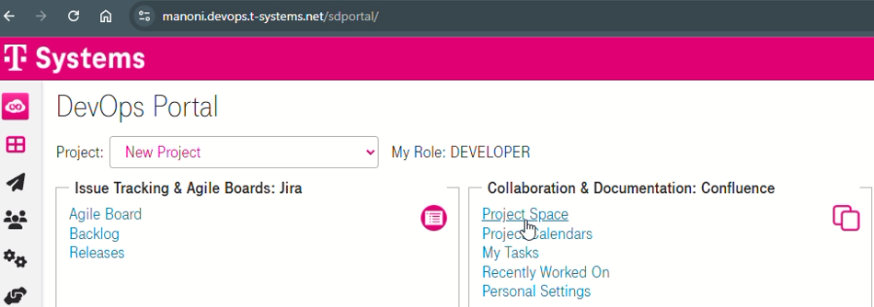
After successful authentication, you will be directed to the DevOps Portal, in this example the user is assigned to two projects, and the user has a specific role in each project. By selecting the relevant Project from the drop-down list, you can navigate through the Collaboration and Documentation under Confluence section as shown in below example:
Create a page
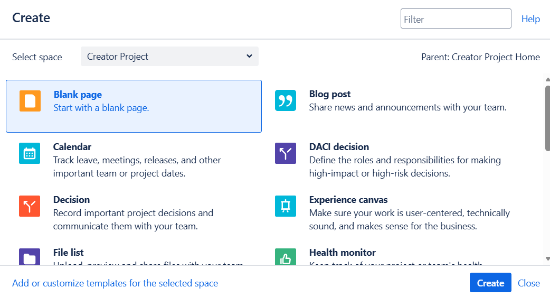
If you want to create a page, then you will find a button on the top of the page. Here you can select to create a page (enough to click on the Create button), but you can create other type of pages as well, if you press the "..." instead.

Link a Jira issue into the page content
If you would like to insert a link to a Jira ticket in your page content (at first you have to create the exact ticket), click on the Insert macros button and select Jira Issue/Filter: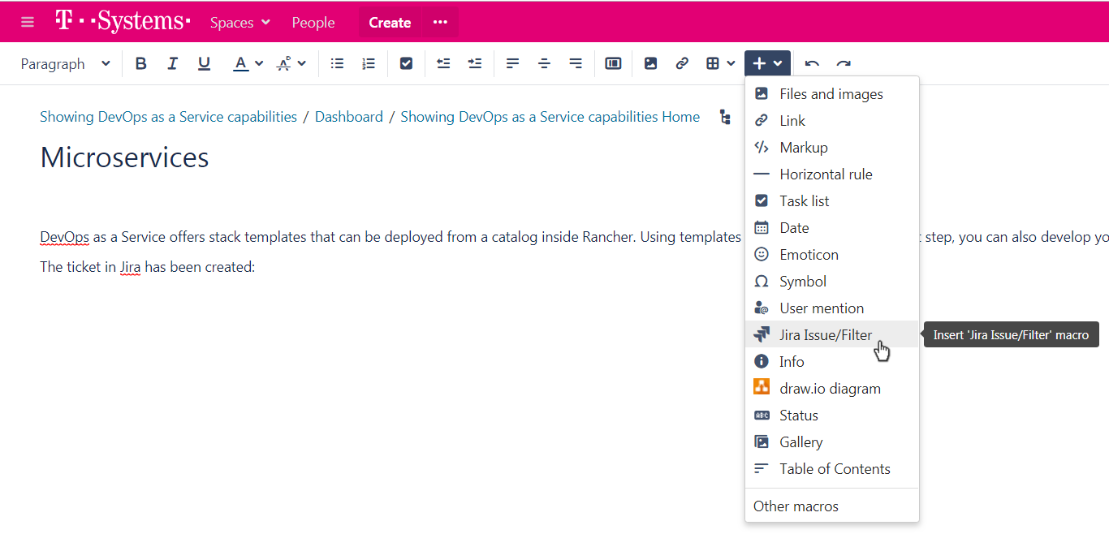
Type the ticket's name (key or summary) on the top (in this example the Deploy microservices ticket can be inserted), then click Insert at the bottom:
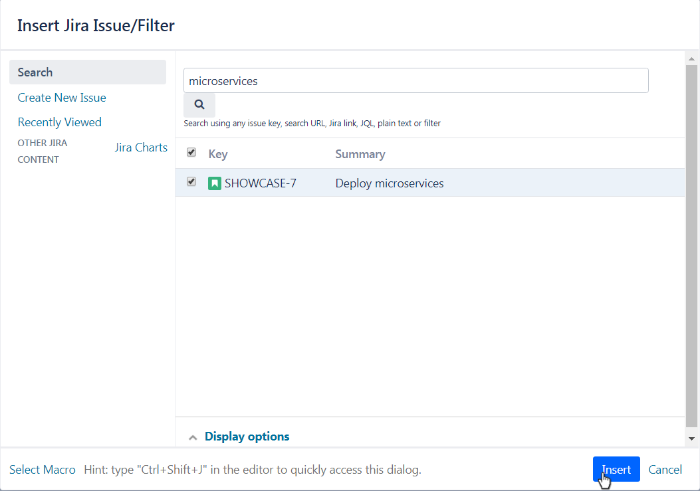
To see the result, you have to Publish the page.
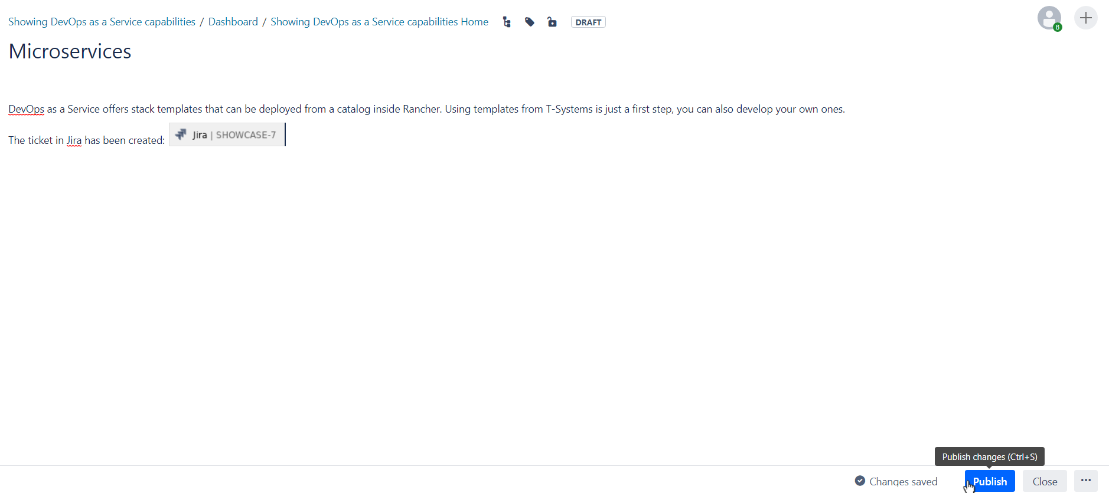
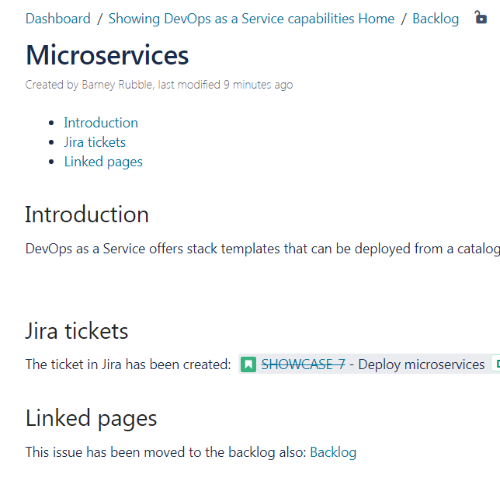
Now the link to the ticket is created and the status of the ticket (in the example it is IN PROGRESS) is shown. Clicking the link will open the ticket in Jira.
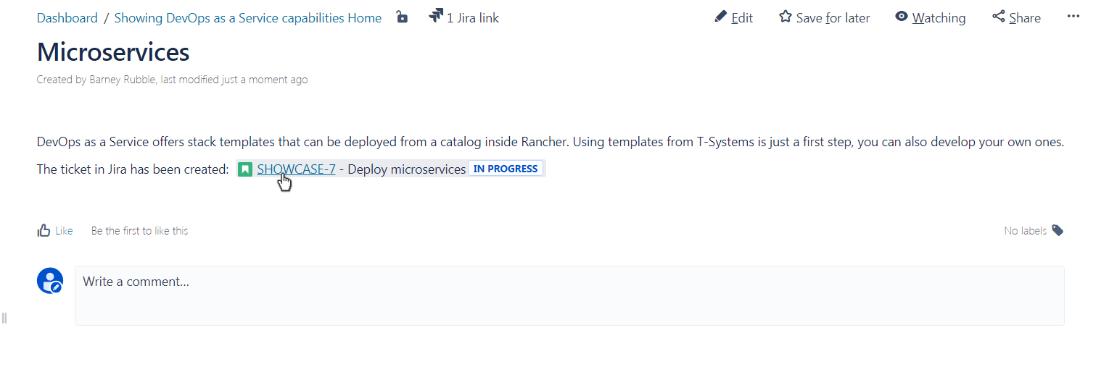
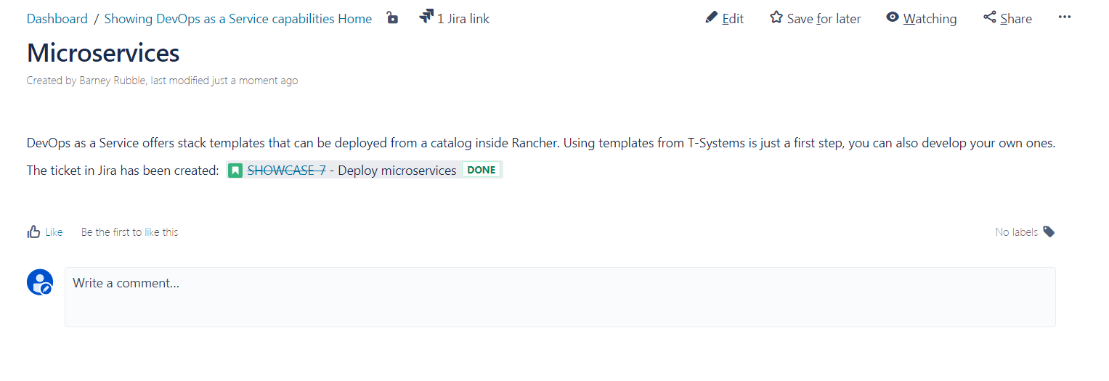
If the status of the ticket changes, this will be reflected in the Confluence page (in this example the ticket status is changed to DONE).
The created page can be seen on the left side under PAGE TREE (which represents the hierarchy of the created pages also)
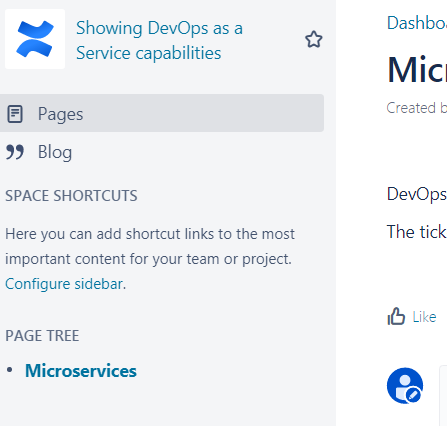
Table of Contents
If you would like to add a table of contents to your page, at first you have to create the titles by selecting one of the Heading formats for the text:
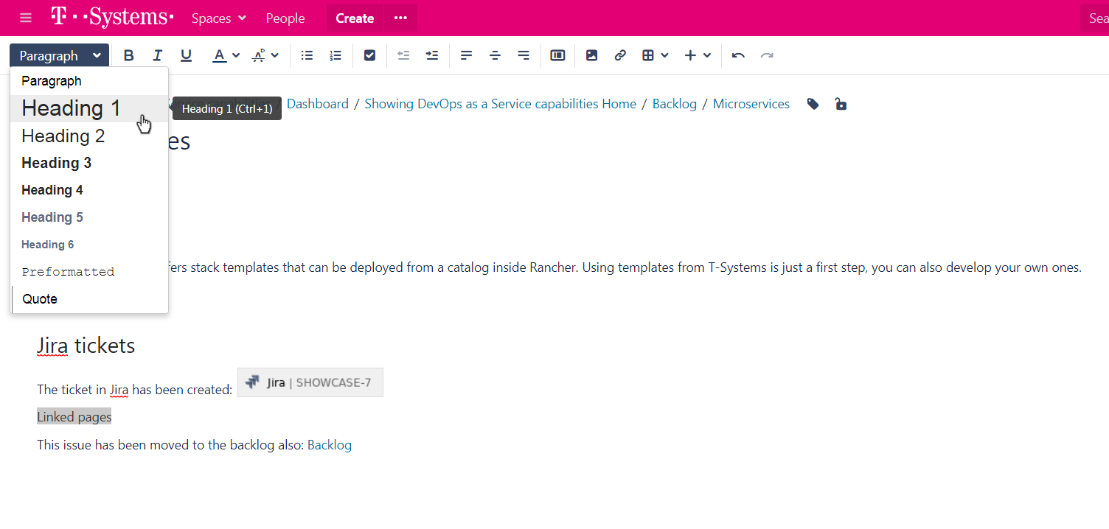
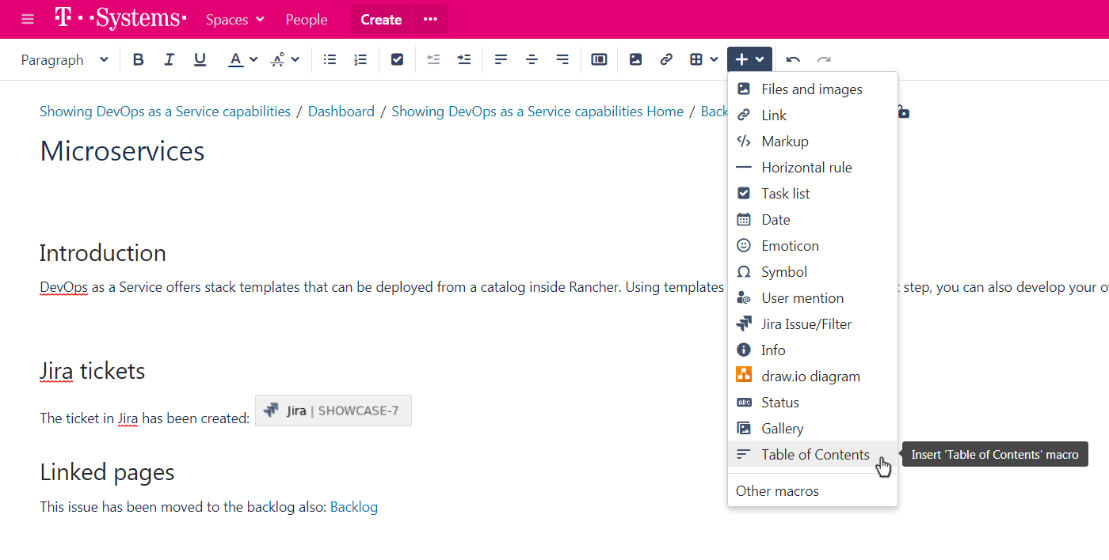
Then click Insert macros icon and select Table of Contents.
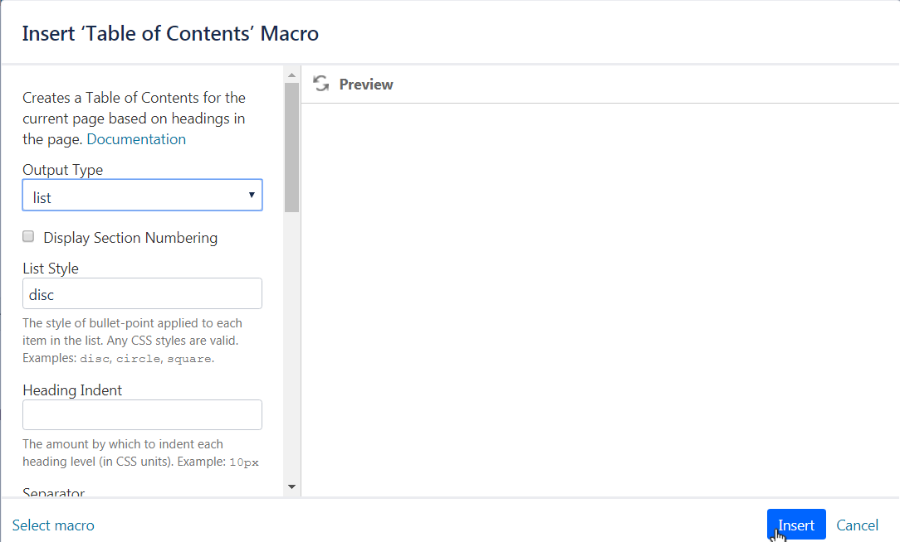
A dialog pops up that let's you customize certain aspects of the table of contents (in this example nothing is changed). Click Insert once you're done:
Now the Table of Contents macro appears at the last cursor position on the page:
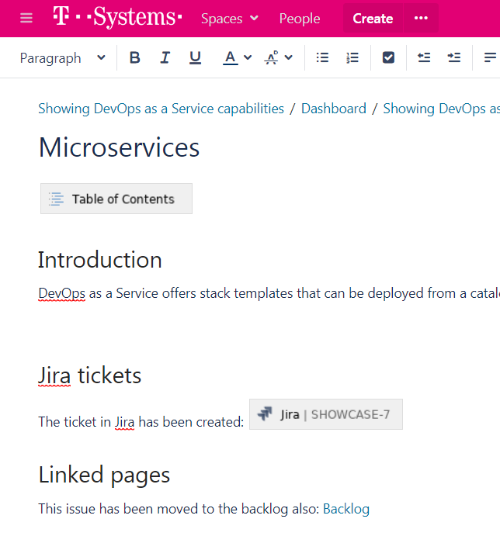
To check the macro simply Update the page and the Table of contents is created from your page's headings:
DevOps Toolchain
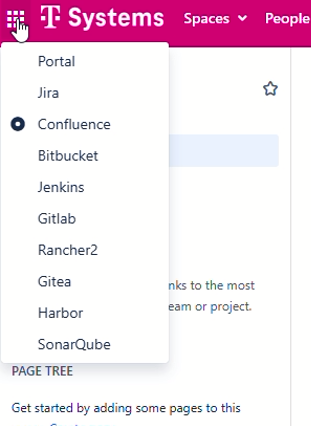
As it is shown in the picture below, by clicking on the dots icon in the top left corner you can have quick access to the other tools in your DevOps-as-a-Service instance.
Links to Confluence vendor documentation
Please check out the vendor provided documentation or Getting Started with Confluence to learn how to work in Confluence. You can skip any documentation related to Confluence installation or administration.